Free for everyone, for good
Every feature, for every person, on every file. No plans, no per-editor seats and no “upgrade to unlock”. Bring your whole team, your clients and your developers.
Evora is a real desktop app for Windows, macOS and Linux that works offline, with free real-time teamwork, interactive prototypes and developer handoff. It opens your Figma files, and your AI agent can design in it too. Every feature is free for everyone, your files stay on your computer, and the code is open source.
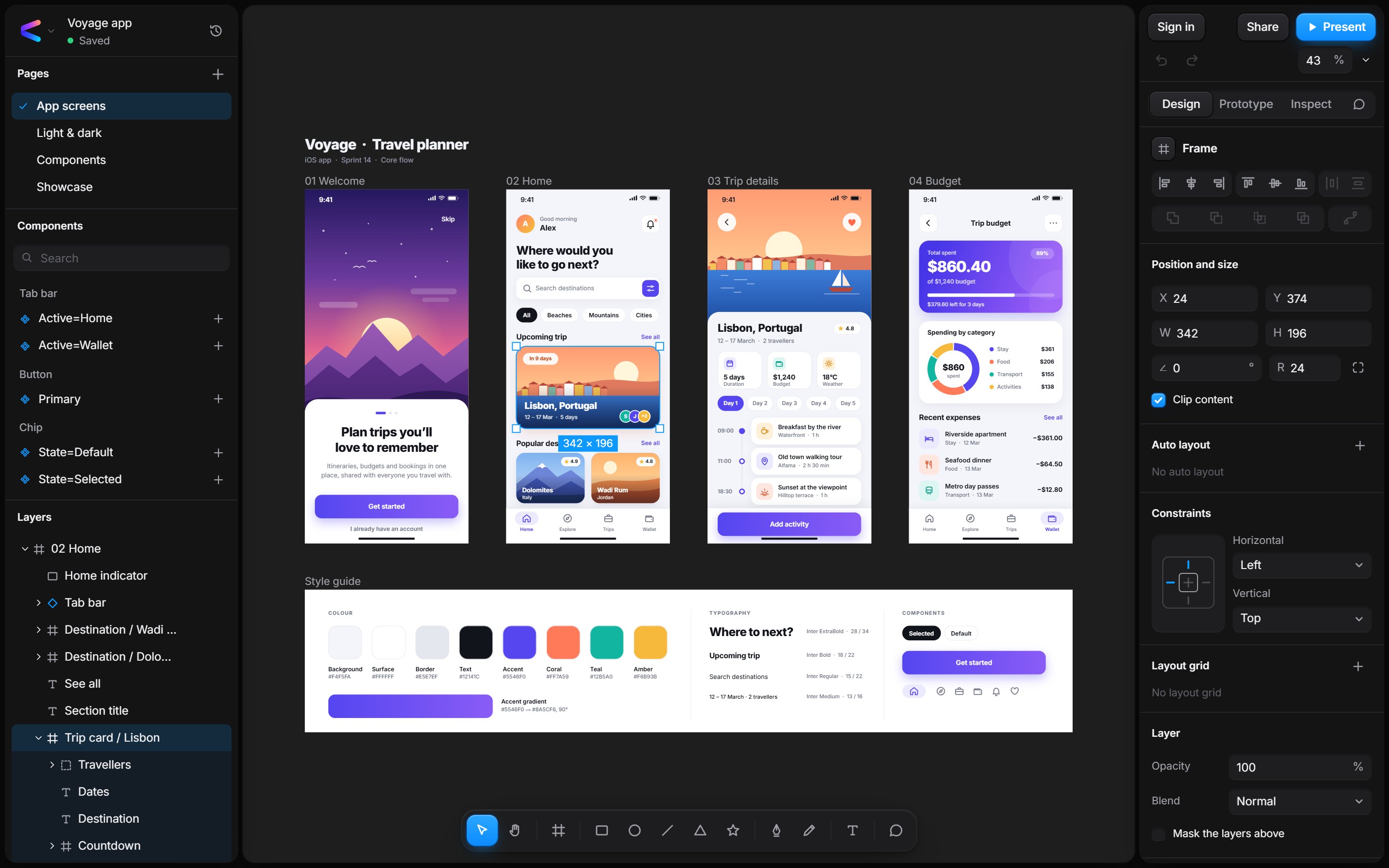
Most design tools charge for every editor, keep your work in their cloud and hold their best features back for paid plans. Evora doesn't.
Every feature, for every person, on every file. No plans, no per-editor seats and no “upgrade to unlock”. Bring your whole team, your clients and your developers.
Evora is local-first. Designs are saved on your own computer as open .evora files and keep working with no internet connection. Your designs don't leave your computer unless you choose to share them.
Edit the same file at once with live cursors and selections, follow a teammate around the canvas, and leave comments with @mentions. Changes made offline merge when you reconnect.
Run Evora's team server on your own machine or cloud. Your designs, your server, your rules, with guides for Docker, HTTPS behind nginx or Caddy, and backups.
MIT licensed and built in the open. Read the code, fork it and extend it with plugins. No company can take your tools away or change the price on you.
Open Figma .fig files and SVGs as editable layers, and export PNG, JPG, SVG and PDF. Switching to Evora doesn't mean starting over.
Design, prototype, build a design system and hand off to developers, all in the same file.
An infinite canvas with frames, shapes, pen and pencil, rich text and images, plus smart guides, snapping and measurements that keep everything pixel-perfect.
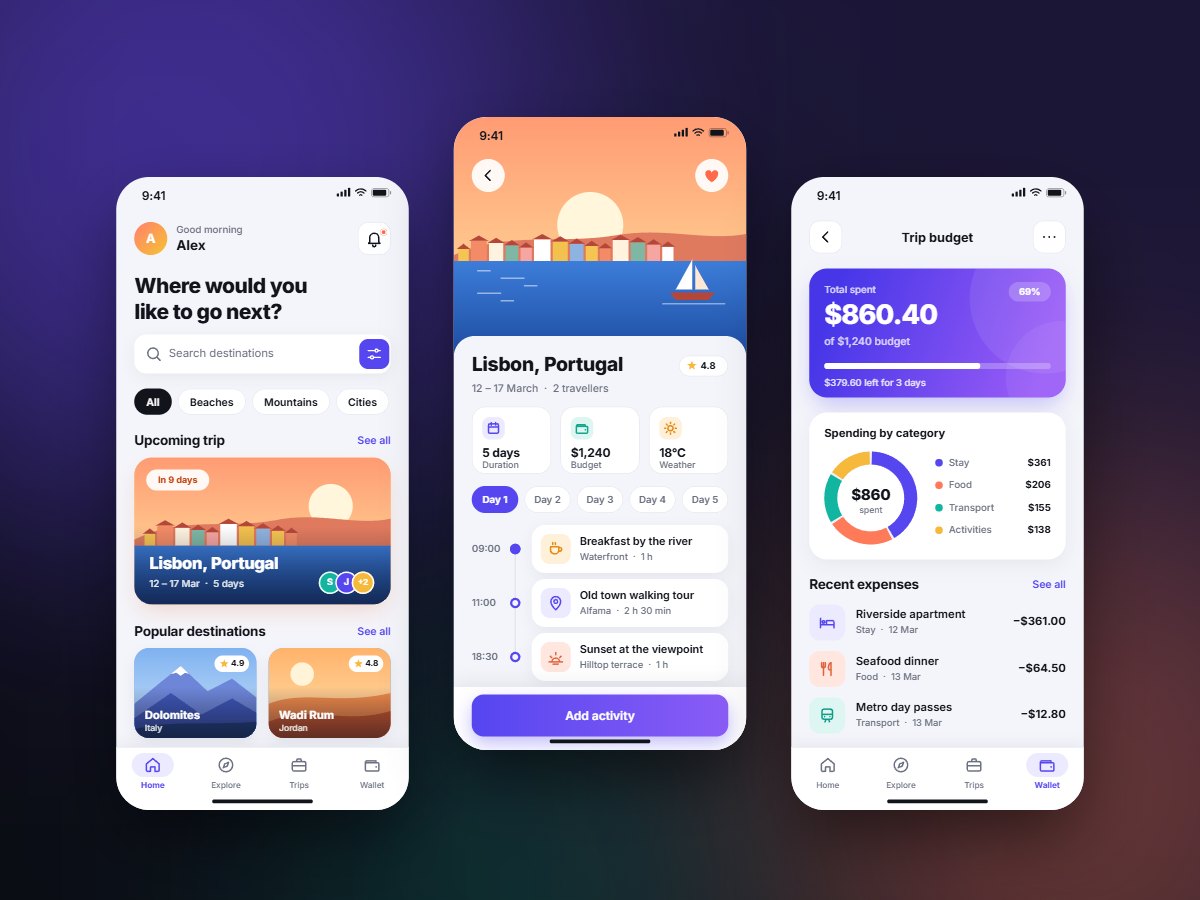
Link screens together and present them on phone, tablet or desktop frames. Test the flow before a single line of code is written.
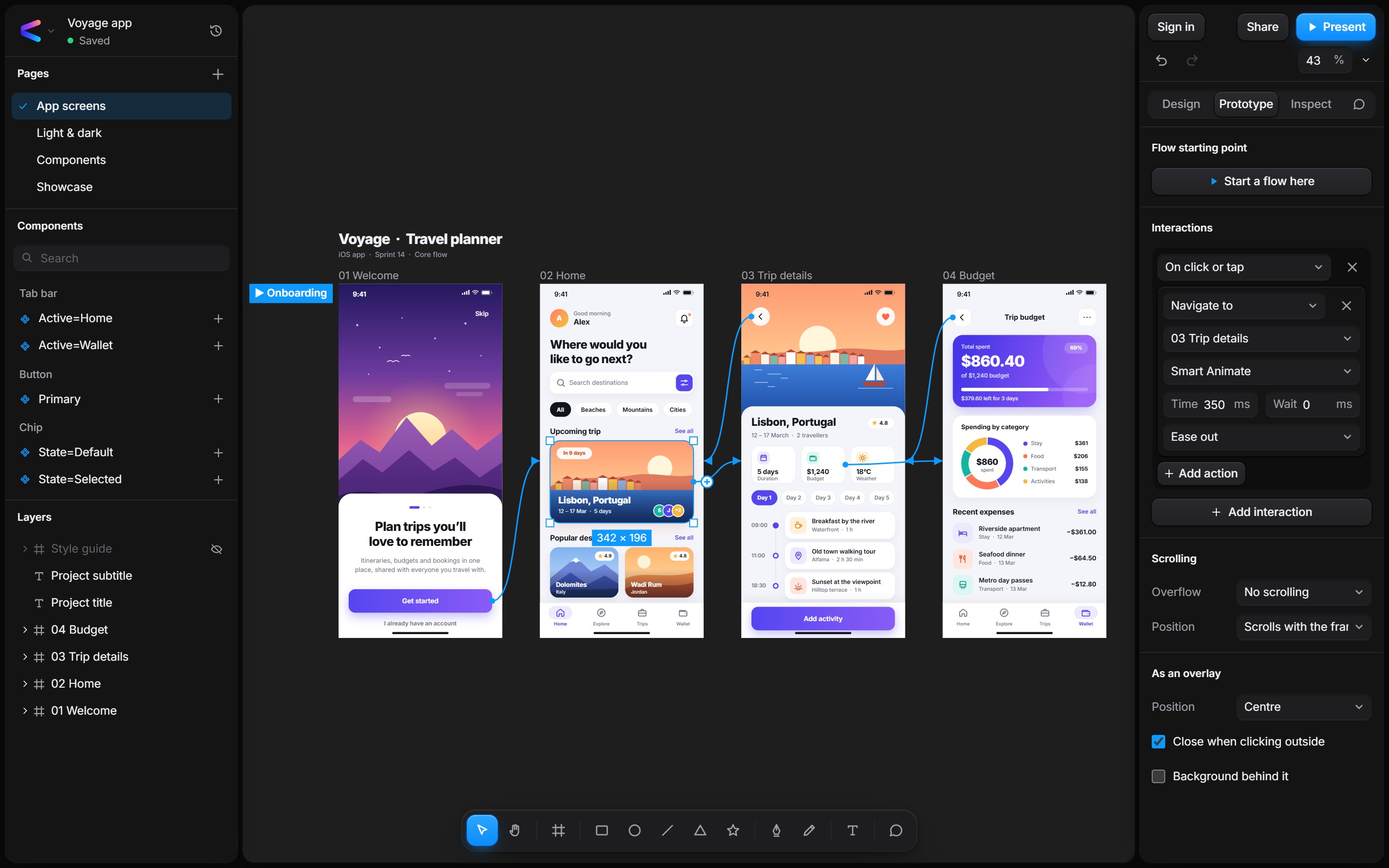
Developer Mode is part of Evora for everyone, not an extra seat. Developers inspect any layer and copy what they need.
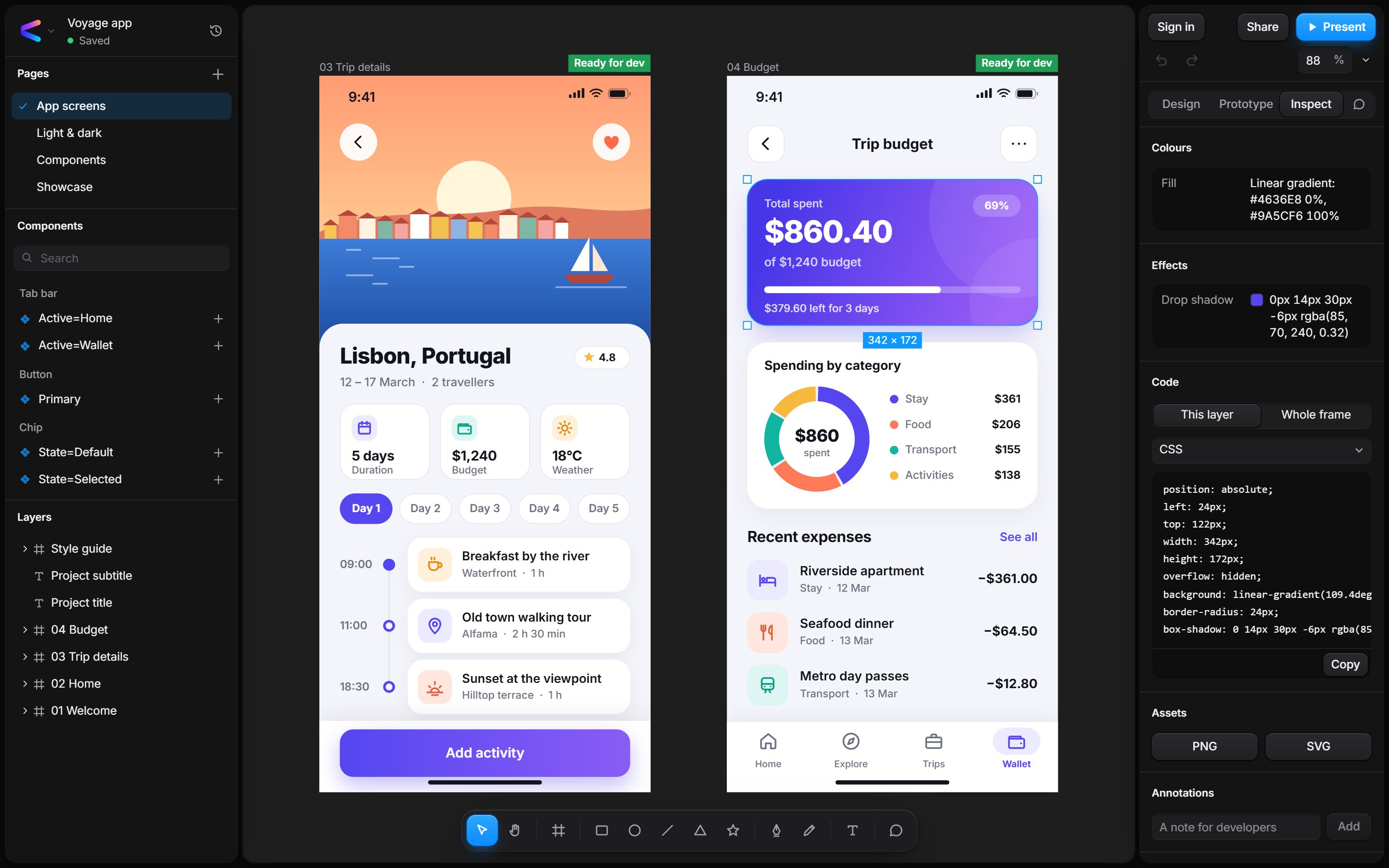
Build once, reuse everywhere. Keep products consistent across files and teams with components, styles and variables.
Automatic and named versions. Compare side by side or overlaid, and restore in one click.
Explore ideas on a branch and merge them back, with every conflict laid out for you.
Pin feedback to the canvas, reply in threads and @mention teammates.
Extend Evora with plugins that run in a sandbox, with only the permissions you grant.
Drop interactive widgets made by plugins straight onto the canvas.
Publish and reuse templates, UI kits and libraries on your team's server.
The desktop app keeps a recovery copy, so unsaved work survives a crash.
Build on the team server with its documented HTTP and live-editing API.
Publish components, styles and variables once; your whole team uses them and gets updates.
Send a link that opens your prototype at the right screen, for teammates or guests.
Invitations and @mentions by email from your own team server, with confirmed addresses.
Continue with Google in the browser and in the desktop app.
Every tool here can design a great product. The difference is what it costs, where your files live, and who gets to use every feature.
| Feature |  Evora |
Figma | Sketch | Penpot | Lunacy |
|---|---|---|---|---|---|
| Every feature free, for every editor | Yes | Free plan with limits, paid seats | Paid per editor | Free with team caps, or self-hosted | Free app, cloud limits |
| Open source | Yes, MIT | No | No | Yes, MPL 2.0 | No (freeware) |
| Design offline, files on your own computer | Yes | No, cloud files | Yes, on a Mac | Only when self-hosted | Yes, local files |
| Host it on your own server | Yes, free | No | No | Yes, free | Paid, on request |
| Real-time collaboration | Yes | Yes | On paid plans | Yes | Yes, cloud files |
| Shared team libraries, with updates | Yes, free | Paid plans only | Paid workspaces | Yes, free | Yes, within cloud limits |
| Shareable prototype links | Yes, free | Yes | On paid plans | Yes, free | Yes, cloud files |
| Developer handoff with code | CSS, SwiftUI, Compose | Dev Mode needs a paid seat | For viewers, on paid plans | CSS, HTML, SVG | Basic inspect |
| Design on Windows | Desktop app | Desktop app | Mac only | In the browser | Desktop app |
| Design on a Mac | Desktop app | Desktop app | Mac app | In the browser | Desktop app |
| Design on Linux | Desktop app | In the browser | No | In the browser | Desktop app |
Opens Figma .fig files |
Yes | Its own format | Yes, Mac app | Via a plugin in Figma | Yes, imports |
| Plugins | Yes | Yes | Yes | Yes | Custom, via its API |
Checked against each product's own website on 18 November 2026; plans, prices and features change, so check theirs for the latest. Penpot is also free and open source, and a good choice if you work in the browser; Lunacy is a free desktop app with paid cloud extras; Evora is free in full, works on your own computer first, and runs its team server wherever you choose. Figma, Sketch, Penpot and Lunacy are trademarks of their respective owners. Evora is an independent project and is not affiliated with or endorsed by them.
Run Evora for your whole organisation on a machine you control. Everyone gets accounts, workspaces, roles, share links and live co-editing, with no per-seat fees and no designs leaving your infrastructure.
Free forever. No account, no trial, no credit card. Install it and start designing in a minute.
Choose your systemVersion 0.2.0Windows 10 and 11, 64-bit
macOS 13 Ventura or later
64-bit (x86-64)
Let Claude Code, Cursor, Claude Desktop and VS Code design in Evora with its MCP server. One file; it needs Node.js 20 or later.
claude mcp add evora -- node ~/Downloads/evora-mcp.mjs --root ~/Designs
Set it up for Cursor, Claude Desktop and VS Code
Version 0.2.0Free, MIT licenceAll releasesWhat’s new
The installers aren’t code-signed yet, so your computer may ask you to confirm the first time you open Evora. Every installer is built in public by GitHub Actions from the open-source code.
chmod +x Evora-*.AppImage) and open it, or install the .deb with sudo apt install ./evora_*_amd64.deb.Yes. Every feature is available to everyone, with no paid plans, no seat limits and nothing locked away. Evora is open source under the MIT licence, so you can use it for personal and commercial work alike.
Yes. Evora's MCP server lets Claude Code, Cursor, Claude Desktop, VS Code and other AI agents create and edit Evora designs: screens with auto layout, shapes, text, colours and shadows. Download evora-mcp.mjs from the latest release, connect it to your agent, and open what it makes in Evora to refine it. Everything stays on your computer. How to set it up.
No. The desktop app saves your files on your computer and works without an internet connection. Accounts only come into it when you want to work with others through a team server: one you host yourself, or one your company runs.
Yes. Open a .fig file and its layers, components, styles, variables, auto layout and prototype interactions come in as editable Evora layers. It was checked against a real Figma file with more than 7,600 layers, and every layer came through. SVG files open as editable layers too. If something in your file doesn't come through as expected, please tell us on GitHub.
Evora's installers aren't code-signed yet, so Windows and macOS don't recognise who made them. On Windows, SmartScreen shows “Windows protected your PC”: choose More info, then Run anyway. On a Mac, the first time you open Evora macOS says it can’t verify the app: choose Done, open System Settings → Privacy & Security, and choose Open Anyway next to the message about Evora. You only need to do this once. The installers are built by GitHub Actions straight from the public source code, and you can check how in the repository.
Start Evora's collaboration server (or use one your team already runs), invite people to a workspace or share a file by link, and edit together live with cursors, selections, following and comments. If someone goes offline, their changes merge when they reconnect.
On a Mac, open the Apple menu and choose About This Mac. If it lists a Chip such as Apple M1, M2, M3 or M4, get the Apple silicon version; if it lists an Intel Processor, get the Intel version. On Linux, the AppImage runs on almost any 64-bit distribution and updates itself; the .deb installs Evora into the menus of Debian, Ubuntu and their relatives, and is updated by installing the newer .deb.
Please do. Bug reports, ideas and code are welcome on GitHub, and the plugin guide shows how to build sandboxed plugins and widgets, with four examples to start from.